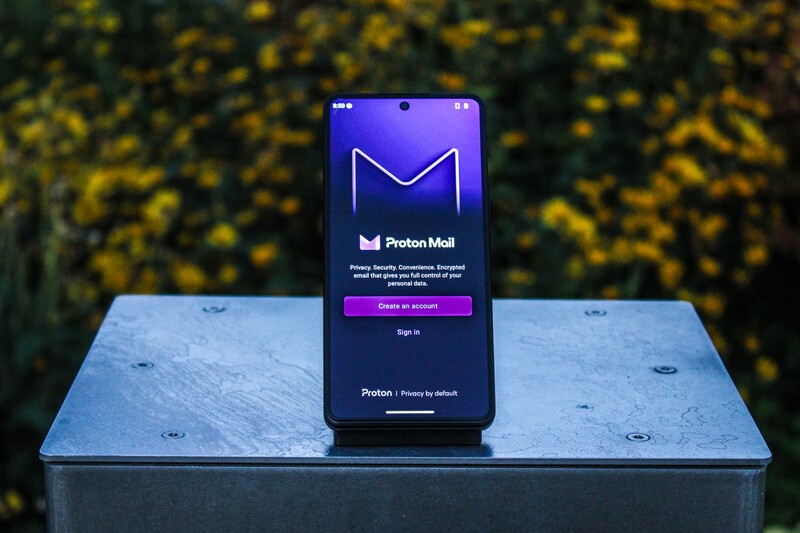
Swiss-based company Proton has a mission, to champion privacy and security as a right for all internet users. They do this by offering a suite of productivity apps to rival those offered by Big Tech companies like Google and Apple. With protection afforded by Swiss-privacy laws, which are amongst the strictest on the planet, Proton is a trusted partner of Apostrophy and AphyOS and thus the majority of their app are available in the Vault on the MC03.
Executive Summary
- What is Proton? A Swiss-based company dedicated to internet privacy, security, and data sovereignty.
- What is Proton Mail? Proton Mail is the Gmail replacement from Proton, with all the convenience of Gmail with additional security benefits.
- Keep Your Gmail Address Proton is intuitive to use for Gmail users and offers an easy switch tool to migrate your Gmail address and messages over to Proton Mail
- Free and Paid Proton Mail is free to use but the paid version offers numerous enhanced features.
What is Proton Mail?
Proton Mail is a privacy-focused replacement for Gmail. It functions similarly to Gmail and feels intuitive to use if one is currently a Gmail user, but has additional benefits from a security and privacy standpoint.
Proton Mail is end-to-end encrypted, meaning your emails cannot be read by anyone other than the recipient and yourself. Unlike Google, Proton does not have decryption keys for their services, meaning even if Proton wanted to read your emails, they can't.
Proton Mail is advertisement-free, and strips unwanted trackers out of incoming email that send information back to the sendder such as when you opened the email or clicked a link.
Proton Mail is available for free, with a paid version with added benefits such as additional storage and filters.
Getting Started
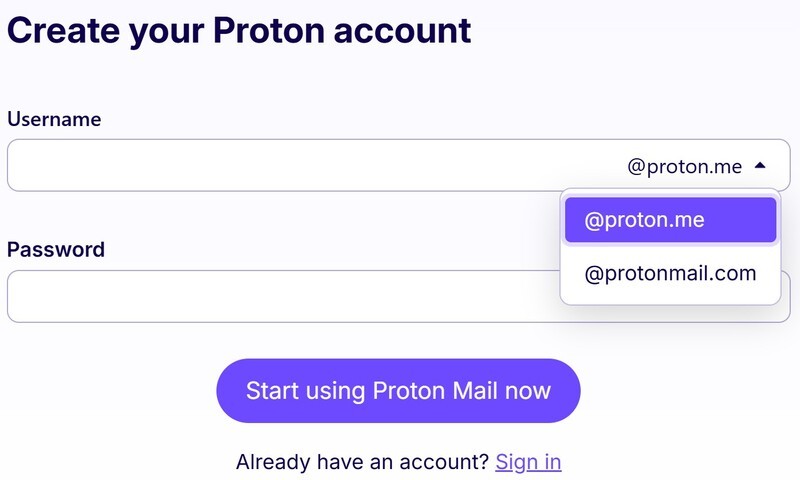
Creating a Proton account is fairly straightforward.
- Navigate to the Proton Mail signup page.
- Select your plan (you can upgrade at any time).
- Create a username and choose your domain name: @proton.me or @protonmail.com.
- Set a strong password.
- Complete a verification check via CAPTCHA, or email.
- (Optional but highly recommended) Download or save your Recovery Phrase; without it you could lose permanent access to your Proton account should you lose your login information.
- Set your Display Name that people when see when you send them an email.
- Click "Let's get started".
- (Optional) Download the desktop app.
- (Optional) Download the app to your mobile device.
- Select your preferred look (default, dark mode, etc).
- Enjoy Proton!
Migrating Your Gmail to Proton
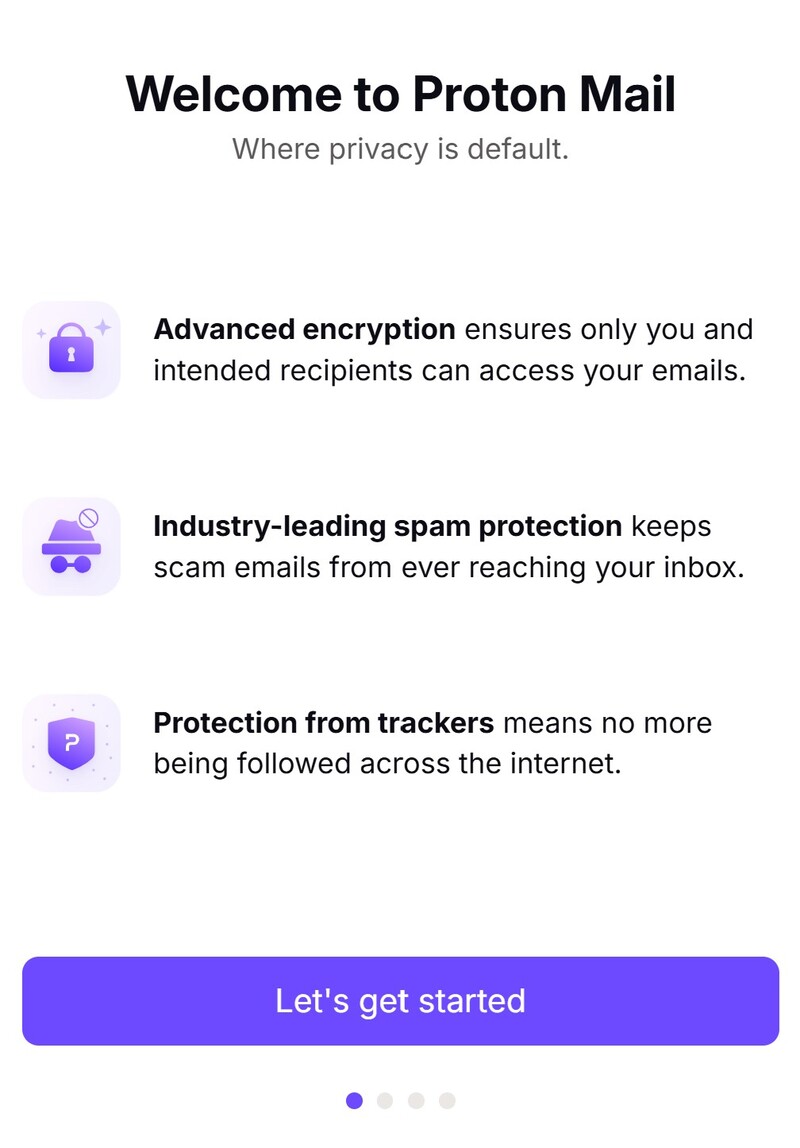
Proton makes it very easy to move or even maintain your Gmail address while still getting the benefits of Proton's additional privacy protections. Users can opt to simply forward their Gmail messages to Proton, or they can fully integrate and send from their Gmail address within the Proton environment. Old messages and folders can also be easily imported, but in the event you decide that was not a good idea, you can undo that import with a click.
Upon creating your Proton account, the first email you will receive offers to start the process. If you decide to do this process later:
If you see a hamburger menu (three horizontal lines) on the upper lefthand side, click on it and select "Settings" from the dropdown menu arrow next to your display name and email address. Select Settings and move to Step 3.
If instead you see a gear icon on the upper righthand side, click on it and select "All Settings".
Select "Import via Easy Switch" (you may need to click another hamburger menu if your browser width is narrow).
When you are ready to begin the process, follow these steps.
- Scroll down to "My addresses" and select "Connect Gmail address".
- Before clicking "Connect your email", choose whether you want a fresh slate, with no old emails moving over, or if you want all of your existing messages copied over to Proton. By default, the "Import your mails" checkbox is selected automatically.
- Click "Connect your email". This will take you to Google's login page.
- Enter your Gmail address and follow the verification process by Google.
- Click "Continue" on the "Sign into Proton" screen.
- Choose whether you would like Proton to view your email messages and settings and/or send emails with your Gmail address from within Proton.
- If on the free plan, choose to stay with the free option or upgrade to Mail Plus (note if you want to upgrade to the paid version of multiple Proton applications Proton Unlimited may be a more suitable subscription).
What if you change your mind about importing your Gmail messages?
Proton has made it even easier to undo importing your old Gmail messages. Simply navigate back to the "Import via Easy Switch" screen as described above, and click "Undo import".
This will remove all messages and filters you imported to Proton, while leaving your ability to receive new emails sent to your Gmail and send from your Gmail address within Proton intact.
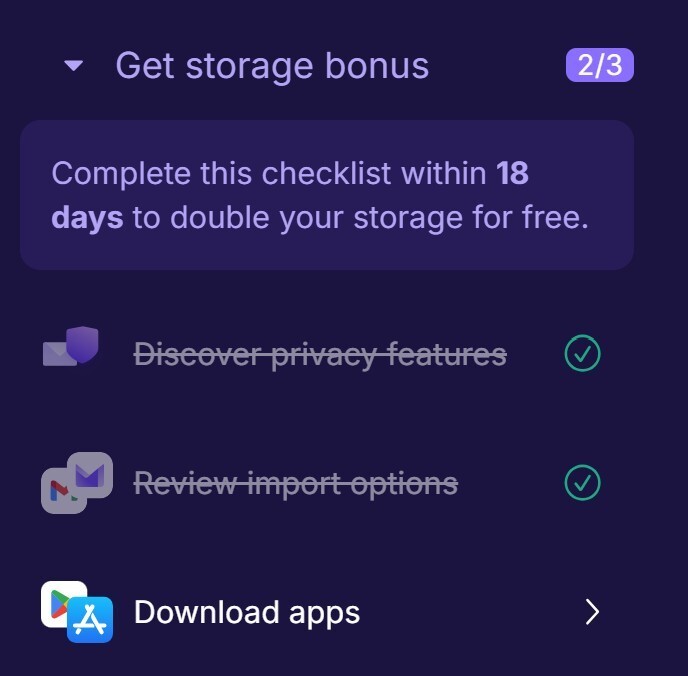
Unlock 1 GB of Free Storage
If you complete the following 4 steps, Proton will upgrade your free Proton Mail account to 1 GB of storage at no cost. The steps to follow are:
- Discover how privacy features protect you.
- Set up auto-forwarding from Gmail.
- Change account logins to your Proton address.
- Use the mobile app.
Once these are complete, Proton will automatically complete the upgrade. To see what steps you have left to complete and how to do it, just click on "Get storage bonus" at the bottom of the lefthand menu.
Managing Multiple Addresses
Proton offers a few different ways to manage different types of email addresses, all within the same mailbox.
Proton addresses
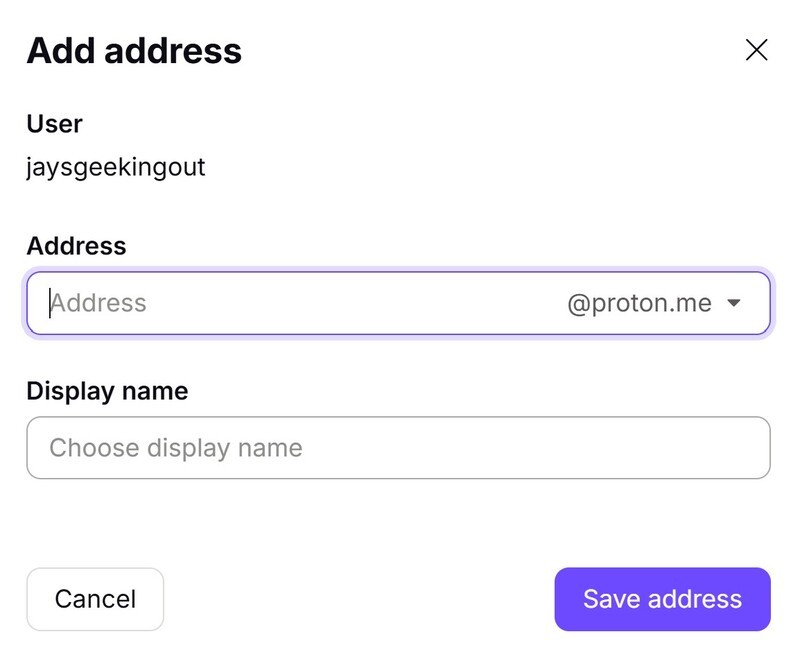
Paid Proton accounts allow you to create additional Proton email addresses, managed within the same mailbox and accessed with the same login credentials.
- In the All Settings menu, select "Identity and addresses".
- Navigate to the "My addresses" section at the bottom of the page and select "Add Proton address".
- Enter an Address and a Display name then click "Save address".
Gmail addresses
Send and receive emails from your Gmail address while gaining the benefits of Proton security. Follow the same steps as outlined above.
Hide-your-email aliases
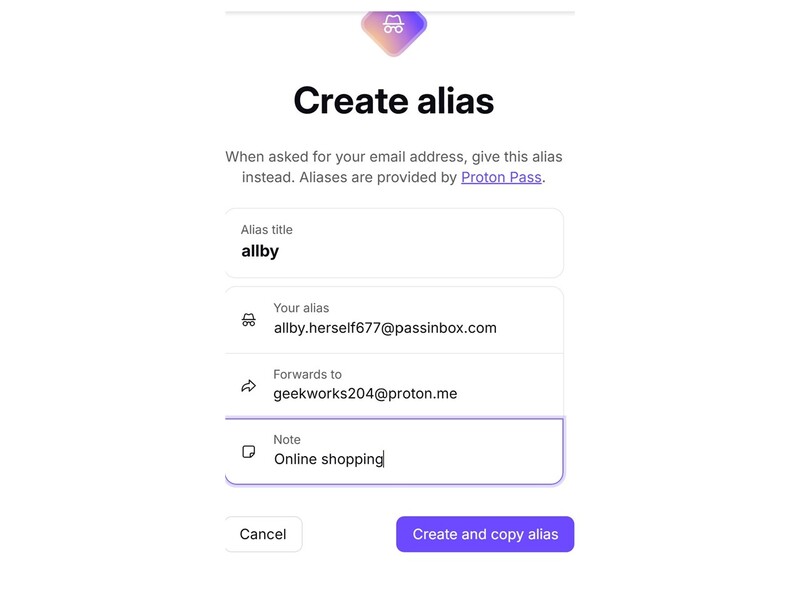
Alias emails are useful for protecting your real email address from being revealed during a data breach. Proton generates a random email address that you manage within your mailbox. For example, if you sign up for a newsletter using your alias email and they suffer a data breach, you can disable the alias and your primary email address is unaffected. Free plans include up to 10 aliases and paid plans offer unlimited aliases.
- To create a Hide-your-email alias, navigate to the Security Centre (located on the left or right of your screen based on the width of your browser).
- Go to "Hide-my-email aliases" and click "New alias". You will be given a partial address and one of two domains, "passinbox.com" or "passmail.net".
- Add a name and an optional note to remind yourself what the alias is used for, then click "Create and copy alias".
- While you cannot customize the name provided, if you do not like it just click Cancel and start over to generate a new address.
Plus+ Aliases
Technically called "mail subaddresses", by adding a + sign and a label, you can easily organize your incoming mail. For example, you may use "username+shop@proton.me" for online purchases. Unlike alias emails, these do not provide additional security, but are an organizational tool.
To use a Plus+ Alias simply add the "+ label" to your Proton address when signing up for an online service or making a purchase.
Custom domains
If you own your own domain name, you can set up email addresses using it within Proton. For example, if you owned the domain name "geekingout.ca", you could create "contactus@geekingout.ca".
Setting up a custom domain varies based on the provider, as there are multiple domains that have different instructions. Please click here to view instructions on setting up your custom domain and emails within Proton.
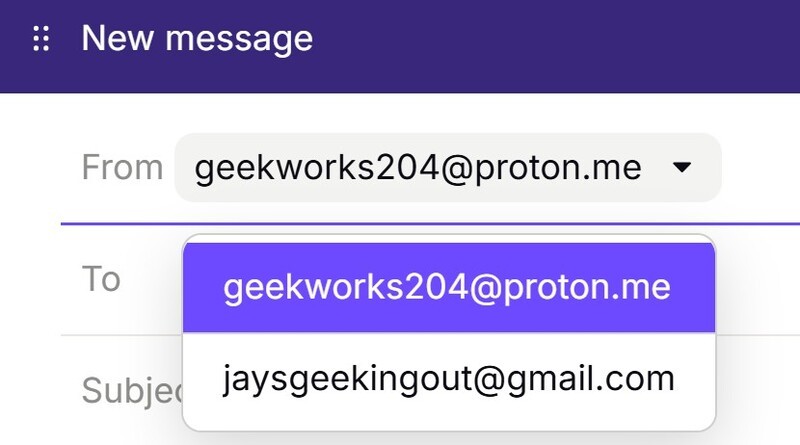
Sending from your preferred address
To send from any of your custom addresses, simply click the dropdown arrow in the "From" field of a new email and select the email of your choice. Replies will automatically select the original email address used on the first email. Note that Hide-my-email aliases cannot be used to originate an email, but can be used on replies sent to that address.
Folders
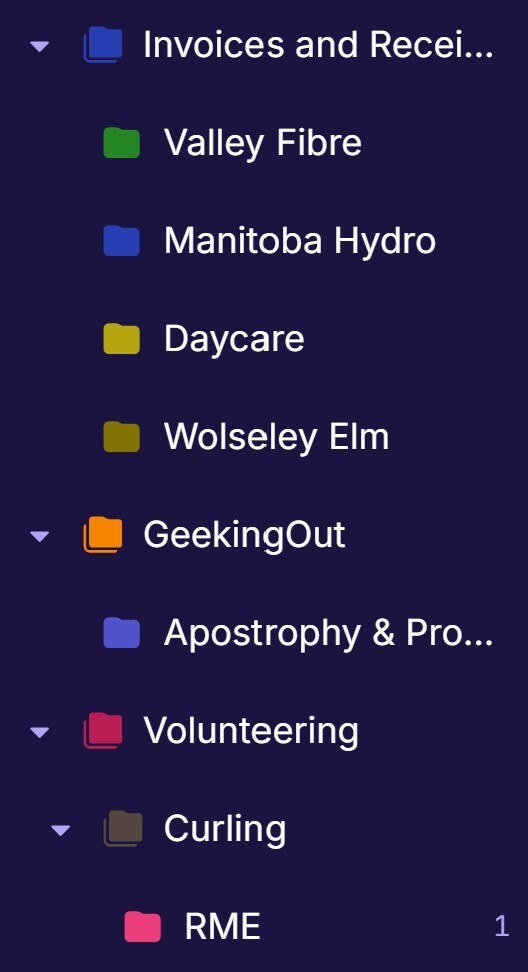
Proton Mail offers various ways to keep your email organized, and one way is through email folders. These are useful for keeping your Inbox tidy and making it easier to find your saved emails. The free version of Proton includes three folders, while the paid version supports unlimited.
Proton already has the basic folders, like your Inbox, Sent, Trash, etc. Adding custom folders can be done from both the desktop and the app. Sub-folders can also be created to manage your emails even more.
Desktop
- On the lefthand menu (if you don't see one just make your browser wider) go to "Folders" and click the + icon.
- You will be presented options to do the following:
- Add a new folder.
- Select parent folder.
- Add a colour.
- Enable/disable notifications for new messages in a folder.
More advanced options can be configured from the All Settings menu under the "Folders and labels" section.
Mobile app
- On the lefthand side of the app, select the hamburger menu (three horizontal lines).
- Tap "+ Create folder". You will be presented with the following options:
- Add new folders.
- Select parent folders.
- Set up colours for folders and choose whether sub-folders inherit the colour of the parent folder.
- Enable or disable notifications for new messages in a folder.
- Delete or edit folders.
Labels
Labels can be applied to messages to make them easier to find or apply filters to. Colours and names of labels can be customized and if you wish, colour coordinated with the folders those messages may be housed in.
A label won't change where an email is housed, and will stay in place should the email be moved to another folder. Deleted emails however do not retain their labels.
Desktop
- On the lefthand menu (if you don't see one just make your browser wider) select "Labels" and click the + icon.
- Input a name for your label, select a colour, and click "Save".
Existing labels can be managed from within the All Settings menu.
Mobile app
- On the lefthand side of the app, select the hamburger menu (three horizontal lines).
- Tap "Create label".
Applying your labels
Once you have created your label, you can apply it to a message as follows.
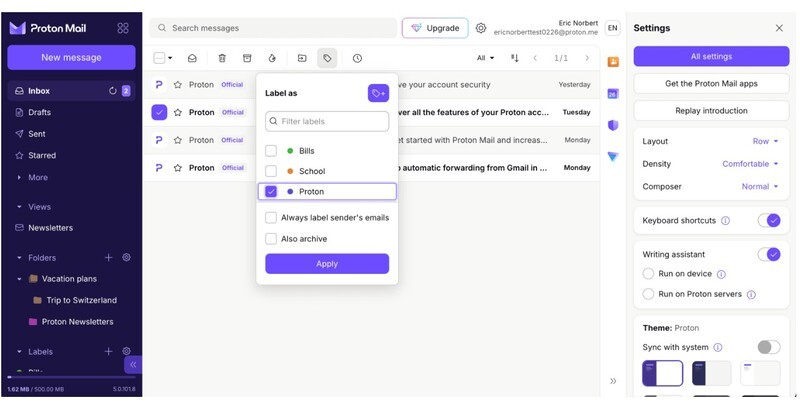
- Open the folder containing the email and open the email you want to label.
- Click the "Label" icon in the toolbar, it looks like a pricetag.
- Select one or more labels from the list; you can add multiple labels to the same email.
- Click "Apply".
- If you want emails from the same sender to always be labelled the same way, check "Always label sender's email".
Filters
Filters are used to sort and label your incoming mail as it enters your inbox. This can be very handy especially when you are managing multiple email addresses within the same mailbox. The free Proton plan allows one active filter at a time, whereas the paid option includes up to 250 active filters.
Simple filters can be created as follows (desktop):
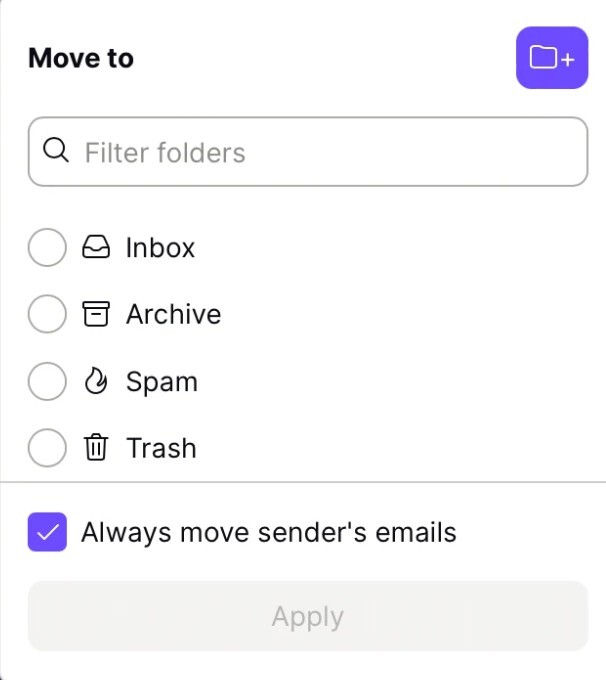
- Open an email and click "Move to"
- Select the folder you want to move the email to.
- Check the box that says "Always move sender emails"
- Emails from that sender will now automatically move to the selected folder.
Create a custom filter
- Navigate to the All Settings menu, then under the Proton Mail section click "Filters".
- Click "Add filter".
- Name the filter.
- Add the conditions that will trigger the filter. You can choose whether the following triggers based on when conditions are met or not met, listed below.
- The subject
- The sender
- The recipient
- The attachment
- Type the text that the filter will screen for, then click "Insert".
For example, if all emails about the Punkt MC03 are to go into a custom folder:
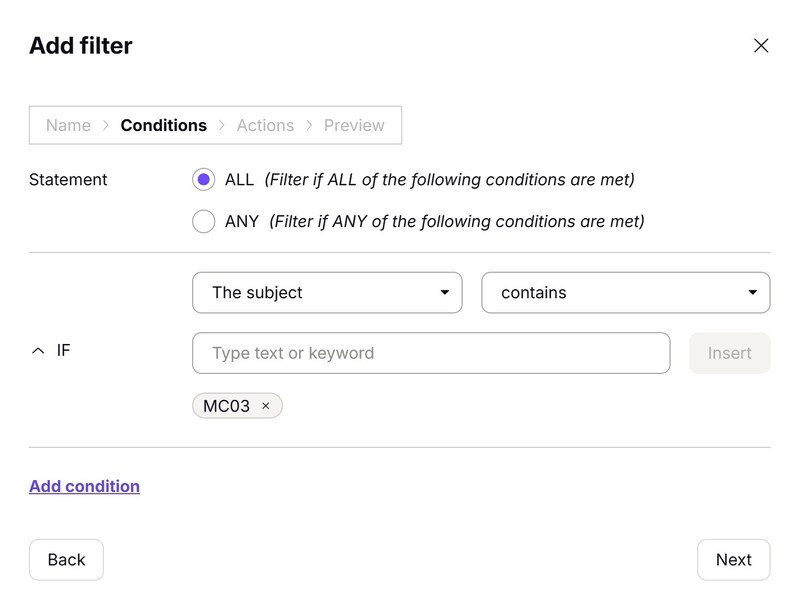
Once this is done, specify what happens when the condition is met. Actions available include:
- Label as
- Move to
- Mark as Read and/or Starred
- Send auto-reply
You can choose to retroactively apply the filter to all existing emails as well. Once complete, press "Save".
Free vs Paid
Proton Mail, like all Proton apps, is available for free. The paid version offers a number of additional features or greater quantities of the free features. The free version may suffice for those who use email for its basic functions only, with the paid version appealing to power users who want to maximize their email potential and efficiency.
Some key differences include:
- 1 GB of storage vs 15-500 GB
- 1 email address vs 10-15 email addresses
- 3 folders vs unlimited folders
- 3 labels vs unlimited labels
- 1 custom filter vs unlimited filters
A full breakdown of the feature comparisons can be found at https://proton.me/pricing, and for more information to consider when deciding to upgrade to a paid Proton account click here.
If you are ready to move to the Paid version, be sure to use this referral link to get a $20 USD credit with Proton to be used for your next Proton purchase or renewal.
Is Proton Mail Right For You?
Proton Mail offers a number of advantages over Gmail, such as end-to-end encryption, no advertising, and stripping of trackers in incoming mail. For those used to Gmail, it is intuitive to use and you can even keep your Gmail address to use within the Proton environment.
Proton is a trusted privacy partner of AphyOS, which is why it is contained within the Vault section of the MC03 smartphone, combining secure hardware with secure software. But even without the MC03, Proton Mail is a great mail option from both a privacy and performance perspective.
Read more

Welcome to Proton Calendar
Proton Calendar is the Proton equivalent to Google Calendar. Proton Calendar provides end-to-end encryption and does not read users data. The article provides information on how to register for the service, key features, comparison to Google Calendar, and a breakdown of free versus paid features.
Welcome to Proton Drive
Proton Drive is a privacy-focused, end-to-end encrypted equivalent to Google Drive. Offered in free and paid versions, the article explains how to sign up for the service, delves into some of its key features, and compares the free and paid versions of the Proton drive app.

Why you want to pay for Proton (and maybe why you don't)
Proton provides a suite of productivity applications that combine convenience and ease of use with enhanced data protection and privacy. Explore why upgrading from the free Proton apps to the paid versions is likely right for many users, but maybe not all.
Proton Just Revealed How Many Data Requests They Refused This Year
As part of that commitment to transparency, Proton regularly publishes a report on how many court-ordered data requests they receive, and how many have resulted in user data being provided.