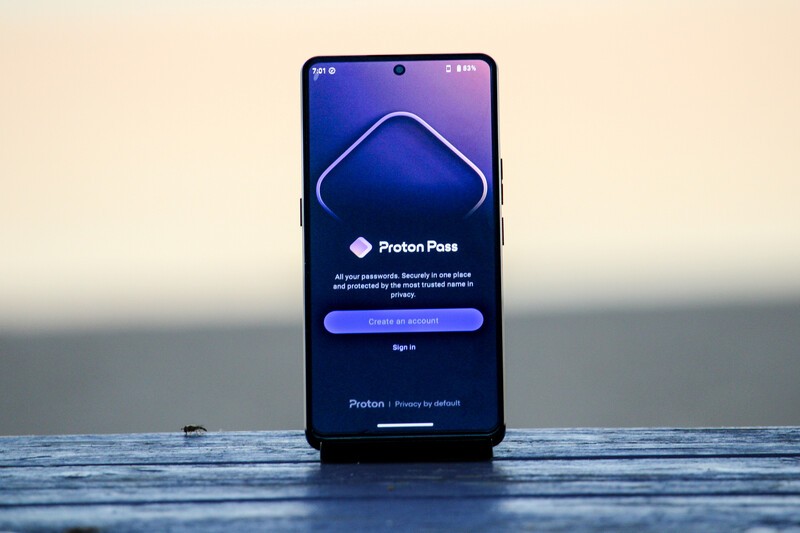
Swiss-based company Proton has a mission, to champion privacy and security as a right for all internet users. They do this by offering a suite of productivity apps to rival those offered by Big Tech companies like Google and Apple. With protection afforded by Swiss-privacy laws, which are amongst the strictest on the planet, Proton is a trusted partner of Apostrophy and AphyOS and thus the majority of their apps are available in the Vault on the MC03.
Executive Summary
- What is Proton? A Swiss-based company dedicated to internet privacy, security, and data sovereignty.
- What is Proton Pass? Proton Pass is Proton's password manager app, with the ability to store logins, credit card information, identification, and more.
- End-to-End Encryption Proton Pass provides end-to-end file encryption, which means nobody, including Proton, can see your private information.
- Free and Paid Proton Pass is free to use but the paid version offers numerous enhanced features.
What is Proton Pass
Proton Pass is the end-to-end encrypted password manager from Proton. It is a fortress for your online logins, credit card information, identity documents, private notes, and more. Integrated into the AphyOS operating system on the Punkt MC03 smartphone, Proton Pass can autofill private data fields on your phone as well as integrate into most desktop web browsers.
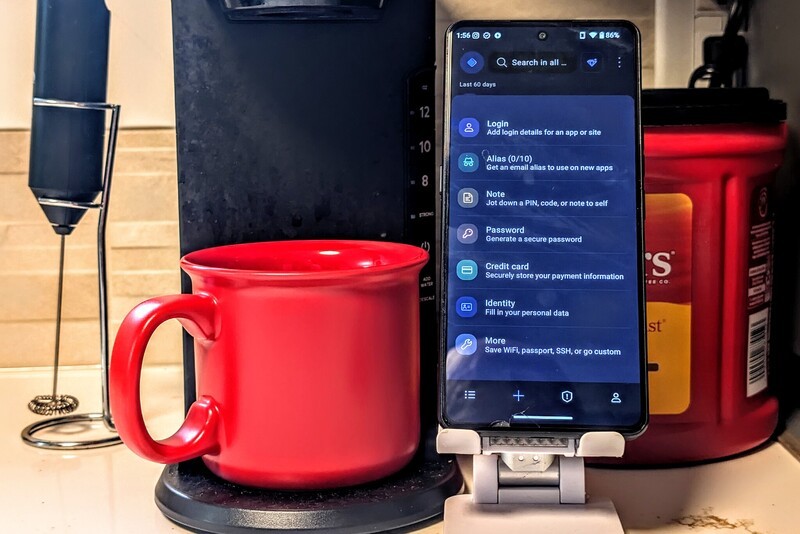
What Can You Store in Proton Pass
- Logins Store and generate logins for any online account or service.
- Hide-My-Email Aliases Used to protect your true email address when signing up for online services. Read more here.
- Notes Create private notes only viewable within your secure Proton Pass.
- Credit Cards Store your credit card information for easy access during online purchases.
- Identity Information Auto fill online forms with your address, email, phone number, and more.
- Custom Items Create and store a variety of other confidential information including but not limited to WiFi networks, bank account information, and your driver's license.
How to Get Proton Pass
If you already have a login for another Proton service, you can use that same login for Proton Pass. If not you can also create a Proton Pass account with your existing email.
- Visit the Proton Pass sign in page or select Proton Pass from the Vault on your MC03.
- Enter an existing email address or create a Proton Mail account.
- Enter the verification code sent to your email.
- Create a password a minimum of 8 characters long and press Verify.
- You are ready to start using Proton Pass.
- (Optional) If supported by your mobile device, enable the fingerprint lock.
- (Optional) Swipe to the right and click "Learn how to use Proton Pass" to view a tutorial video from Proton.
Importing Existing Passwords
As with other Proton services like Proton Mail and Calendar, Proton has made it simple to move your saved passwords in your browser or another password manager over to Proton.
In your Proton app, navigate to "Profile > Help Centre > Import/export". You will find a list of step-by-step instructions to import your passwords from a variety of different password managers, as well as the Google Chrome browser.
To do this from your web browser login to Proton Pass, click the gear icon next to your username in the lower left-hand corner, and select "Import".
There are also instructions on how to export your Proton Pass data if you'd like to back it up offline.
Generating New Passwords
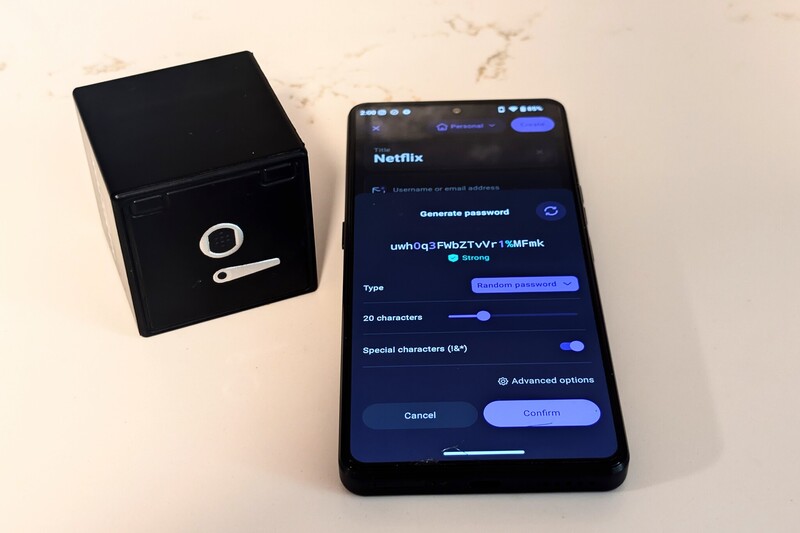
Proton Pass makes it simple to generate new passwords when signing up for services or changing your existing password. This can be done manually, or if you have integrated Proton Pass into your phone, it can prompt you automatically.
When allowing Proton Pass to generate your password for you, you control the length and complexity of the password. You can also choose between an indecipherable string of numbers, letters, and symbols, or easier to remember phrases.
Protecting Your Pass
End-to-end encryption protects your data from external threats, and Proton Pass has several ways to protect your data should someone gain physical access to your device.
- From the "Profile > Security > Lock with" menu, enable "Pin code" or "Biometric" to require that additional level of security to open your Proton Pass. If you go the Pin route ensure it is a different Pin than the one to unlock your device.
- From the "Profile > Settings > Clipboard" menu, limit the amount of time the Clipboard will retain your copied passwords and usernames.
- Download and install the Proton Authenticator app. From there you can enable two-factor authentication on all of your Proton apps for an additional layer of security.
- While Proton Pass is set by default to automatically lock after 10 minutes of inactivity, you can customize that timeframe to make it shorter. Login to Proton Pass in a web browser and navigate to the Settings menu in the bottom left-hand corner. Select "Security" and find the "Auto-lock after" dropdown to adjust the timeframe.
Web Broswer Integration
Proton Pass can easily be integrated into your web browser for the same Auto-fill convenience you enjoy on your smartphone. Supported browsers include:
- Chrome
- Safari
- Edge
- Firefox
- Brave
To download the extension for your browser and for installation instructions, visit the Proton Pass download page.
Password Sharing
There are times where you need to share login credentials with others. Proton Pass offers several secure ways to do so.
For sharing of a single password, Proton Pass has two options, both accessible by clicking the people icon in the upper right-hand corner of the app.
- For temporary password sharing, you can generate a secure link. With this option, you can set an expiry date for the link as well as limit how many times the link can be viewed; once the set number of views are reached, the link expires.
- For permanent individual password sharing, where you can grant read-only or Editor status, you can send a share request. This can only be done if both sender and receiver have a paid Proton Pass account.
For sharing of multiple passwords, you can establish individual Vaults to hold your passwords. Free users can create one additional vault while paid users can create up to 50.
Shared Vaults
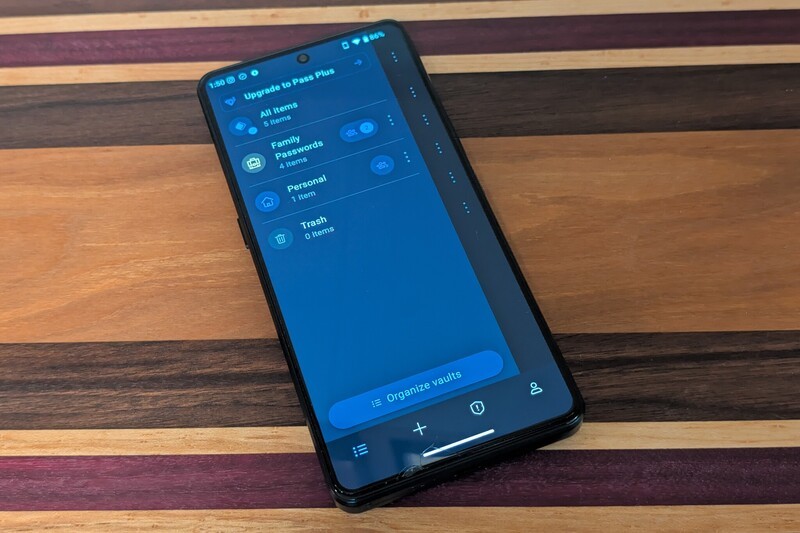
Not to be confused with the Vault on the MC03, Proton Pass Vaults allow you to organize your passwords and share the Vault with others. This is particularly useful for work teams to collaborate, or families to share all the streaming service logins.
In the Proton Pass app on your MC03, click the icon on the upper left-hand side of the screen, beside the Search bar. Click "Create Vault" at the bottom of the menu. Name your Vault, pick the identifying icon and the colour of the icon, then click "Create vault".
Once created, by clicking the Vault icon on the upper left-hand corner, you can email a share request to other Proton Pass users, and specify what level of access they have. Once accepted this will count as the one free additional Vault available to free users.
Free vs Paid
As with all Proton products, the free and paid versions of Proton Pass include the same end-to-end encryption to keep your data secure.
For many users, the free version of Proton Pass will more than do the job. With unlimited logins, up to 10 alias email addresses, and one additional vault, the free version is already an effective password management app.
Paid users enjoy unlimited alias email addresses, built-in 2FA (two-factor authentication), Dark Web monitoring and enhanced sharing capabilities.
Is Proton Pass For You?
Proton Pass stands out in the password management space as an extremely secure option to protect not only your logins, but also your identity, while navigating the internet. The free version is already a robust password management option, with the paid version providing additional functionality and features.
Read more

Welcome to Proton Calendar
Proton Calendar is the Proton equivalent to Google Calendar. Proton Calendar provides end-to-end encryption and does not read users data. The article provides information on how to register for the service, key features, comparison to Google Calendar, and a breakdown of free versus paid features.

Welcome to Proton Drive
Proton Drive is a privacy-focused, end-to-end encrypted equivalent to Google Drive. Offered in free and paid versions, the article explains how to sign up for the service, delves into some of its key features, and compares the free and paid versions of the Proton drive app.
Welcome to Proton Mail
Proton Mail is the privacy-focused mail application from Swiss-company Proton. Proton has a mission to promote internet privacy and data sovereignty as a right for all internet users. The article goes into a number of features in Proton Mail and instructions on how to use them.

Why you want to pay for Proton (and maybe why you don't)
Proton provides a suite of productivity applications that combine convenience and ease of use with enhanced data protection and privacy. Explore why upgrading from the free Proton apps to the paid versions is likely right for many users, but maybe not all.